3.15.2022

Hugs and Kisses Tutorial

 This tutorial is for those that have a working knowledge of PSP. This tutorial was written by me on March 14, 2022 and any resemblance is purely coincidental. I use PSP 9,but any version should work. I do not allow my tutorials to be translated and pleasedo not claim them as your own. If you would like to share the tutorial, please send a link to my blog.  Thank you!

  Things Needed:

  • Tube of Choice I am using the work of www.destinylauritsen.com  
  • Muras Meister Copies
  • Toadies plain Mosaic
  • Special Effects 1 I have in my filters unlimited
  • Tramages- Tow the Line

Let’s Begin:

1.)    Open a new image 600 x 250

2.)    Open your tube and copy and paste as a new layer on our working image

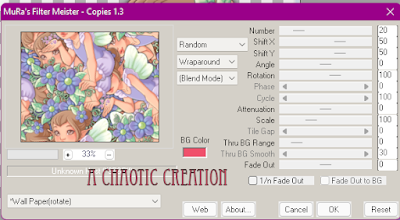
3.)    Using Muras Meister Copies - Choose wallpaper (rotate) with the following

settings


4.)    Adjust- Blur- Gaussian Blur radius 15.00

5.)    Using Toadies filter - Plain Mosaic- cell width 16, Cell height 8,

cell Edges on/off 9

6.)    Adjust -Sharpen- Sharpen More

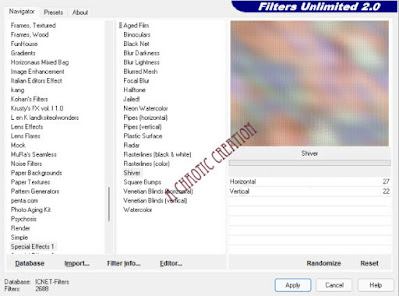
      7.)    Using Special Effects 1 in filters unlimited use the following settings


8.)    Duplicate this layer

9.)    on our new layer use tramages plug-in tow the line default settings

10.) Change the opacity of this layer to overlay or one of your choosing.

11.) Merge down

12.) Duplicate this layer

13.) Image- Mirror

14.) Lower the opacity down until you are happy with it

15.) resize your tube and paste as a layer on our working image

16.) add a nice drop shadow of your choosing

17.) Merge all the layers

18.) Image add borders size 1 in black

19.) Image add borders size 10 in a color from your tube

20.) Image add borders size 1 in black

21.) with your magic wand select the border of color from our tube

22.) Adjust- Add noise at 45 Uniform ticked an monochrome checked

23.) Now find a quote/saying that would go well with your tube

24.) Add your copyright info and save.

25.) See just a quick and simple tut-I would love to see your results if you do

   this tutorial


   Hugs, 


Carmin


6.07.2021

Fairy Sparkles Tut


You will need the following:

  • Kit of Choice
  • Muras Meister Copies
  • VM Distortion
  • VM Natural Splash
  • Tube of Choice
  • Font of choice
  • Avatar Frame Ring

Lets get started;

  1. Open a new blank image 950 x 352
  2. Paste your tube as a new layer
  3. Muras Meister- Copies- Wallpaper Rotate default settings
  4. Adjust- Blur Gaussian Blur 15
  5. Filters- I.C.Net Software- Filters Unlimited 2
  6. VM Distortion- Radiator II - Default settings
  7. Duplicate this layer
  8. Image- Mirror
  9. Image- Flip
  10. Lower the opacity of this layer to 50%
  11. Merge Visible
  12. Filters- I.C.Net Software- Filters Unlimited 2
  13. VM Natural-Splash- Default setting
  14. Effects- Edge Effects- Enhance More
  15. Merge visible once again
  16. Open a frame from your kit of choice
  17. Paste as a new layer on your working image
  18. Duplicate your frame layer and resize by 70%
  19. Move to the left of your main frame
  20. Duplicate- Image Mirror
  21. Highlight main frame layer
  22. Add a new raster layer
  23. With your magic wand click inside your main frame
  24. Paste Paper of choice into selection
  25. Select none
  26. Move this layer below your frame layer
  27. Now repeat this with your two smaller frames- using the same paper or choose a different paper
  28. Copy your tube and paste as a new layer on your working image
  29. Add a nice drop shadow
  30. Now paste your tube as a new layer again and resize to fit the frame on the left
  31. Once satisfied move below your frame layer
  32. Repeat for the right side
  33. Now you will add elements from the kit you are using and placing them to your liking
  34. Once happy merge visible
  35. Effects- Plugins- AAA Frames- Foto Frame
  36. Change the width to 5 and click ok
  37. Add your text
  38. Add your credits
  39. Merge Visible

For the Avatar:

  • There is two ways to do this you can select a portion of your TL or you can use the avatar frame ring I have supplied and make a totally new image inside the frame
  • I chose the 2nd option and used elements to build it up until I was content
  • I then added my Tube off to the right and added some sparkles
  • Move the circle frame to the top and click inside with your magic wand
  • Selections invert
  • Go layer by layer and remove excess from the layers so everything is within our circle frame
  • Once happy merge visible
  • Add your copyrights and name
  • Now you have completed a timeline set 


Please share your results with me so I can post them with this tut. I always look forward to seeing what others  create


2.26.2021

Blossom by Blossom


 What you will need:


A Tube of your choosing- Im using the artwork of the talented 

Anna Marine  www.facebook.com/annamarineofficial

Plugins: AAA Frames, Muras Meister, Xero Fritillary

A kit of your choosing for elements to add to your banner

A quote or saying of your choice

*******************************************


  • Open a blank Transparent image 900x352

  • Copy and paste a tube of your choosing as a new layer 

  • Effects- Muras Meister- Line with default settings

  • Duplicate

  • on duplicated layer -Adjust- Blur- Gaussian Blur with a blur radius of 12 

  • Change the opacity to color and lower to 62 

  • Now change raster 2 to Normal 34

  • On raster 2 go to Effects-and select Brush strokes- crosshatch with the settings at 13, 6, 1

  • On copy of raster 2 go to effects, xero, fritillary 2 default settings 

  • repeat 

  • Now on raster 1 fill this with a color to match your tube 

  • Back on raster two choose effects- edge effects- enhance more so it brings the lines out 

  • Paste your tube as a new layer place to your liking 

  • Add a dropshadow to your tube (I used -5, 5, 100, 5, Black)

  • Now you can add flowers and things from one of your favorite scrap kits 
  • I just used the flowers that were on the tube and some sparkles

  • Once happy with placement of everything merge visible

  • Effects -AAA Frames- foto frame change width to 10 and click ok 

  • Now add your copyrights and quote or saying of your choosing


And there we go you now have our new banner 


Hope you enjoyed this tutorial...

11.04.2020

Beauty Tutorial


This tutorial is for those that have a working knowledge of PSP. This tutorial was written by me on November 3, 2020 and any

 resemblance is purely coincidental. I use PSP 9, but any version should work. I do not allow my tutorials to be translated and please

do not claim them as your own. If you would like to share the tutorial,  please send a link to my blog.  Thank you!


Things Needed: -

  • ·      Tube/Image of choice:  Tube I am using the art of the talented Alessia C. and her work can be found at CDO
  • ·      Kit of choice:  No Kits Needed
  • ·      Plugins:   Muras Meister Copies, VM Toolbox
  • ·      Masks:  No Masks Needed
  • ·      Template:  Avatar template 

  • ·      Font of Choice
  • ·      Animation, or other items used:   Not Needed

Let’s Begin:

1.)    Open a new transparent image size 950 x 352 (this will be known as our working image)

2.)    Open your tube and copy

3.)    Paste your tube as a new layer on our working image

4.)    Effects-Plugins-Muras Meister- Copies

Select H Tile Circle and select ok

5.)    Adjust- Blur- Motion Blur Angle 45 Strength 100

6.)    Repeat the blur 2 more times with the same settings

7.)    Duplicate this layer of our working image

8.)    Image- Flip Image- Mirror

9.)    Lower the opacity of the top layer to 50%

10.)  Merge visible

11.)  Duplicate this layer

12.)  Effects- Plugins- VM Toolbox- Trimosaic Divisions 9, mode 179

13.)  Change this opacity of this layer to hard light (or one of choice as the colors will vary depending on what tube you use.)

14.)  Effects- Edge Effect- Enhance

15.)  Copy your tube (Your main tube) and paste as a new layer on our working image

16.)  Place to your liking and duplicate

17.)  Adjust Blur- Gaussian Blur- 10

18.)  Change the opacity to overlay on this layer

19.)  Add your Text, Names, and Copyrights now

20.)  Once you have all your text where you want it add a nice drop shadow

21.)  Image- add borders- size 2- color black

22.)  Image- add borders- size 2- color that matches your tube

23.)  Now for our avatar open the avatar template I provided for you

24.)  Copy and paste as a new layer on our working image and lower the opacity to 50

25.)  Move to the part of your timeline that you would like to be your avatar/profile picture

26.)  Now make sure the layer with the circle is closed off

27.)  Copy Merged

28.)  Paste as a new image in PSP

29.)  You need to add the Name of the Artist on avatars with a © sign and your license # so do this now along with any text you wish to add

30.)  Back to our working image delete the circle layer and save your timeline tag and your avatar

  Thank you for trying my tutorial I would love to see your results… Feel Free

To email them to me or post on Facebook and tag me… If you have any questions

Don’t hesitate to ask I’m online on and off all day...


10.12.2019

Powerful and Corny


This tutorial is for those that have a working knowledge of PSP. This tutorial was written by me on October 11,2019  and any resemblance is purely coincidental. I use PSP 9, but any version should work. I do not allow my tutorials to be translated and please do not claim them as your own. If you would like to share the tutorial, please send a link to my blog.  Thank you!

Things Needed: -
·         Tube/Image of choice: I am using the work of ©Ed Mironiuk www.edmironiuk.com. His awesome tubes can be found at CDO www.cdoestore.com
·         Kit of choice: No kit being used 
·         Plugins: Filters unlimited -VM Toolbox, Muras Meister,
·         Masks: no mask needed
·         Template: No Template
·         Font of Choice: I am using pleasingly plump
·         Animation, or other items used: No animations used
Let’s Begin:
1.)    Alright here we go
2.)    Make a new transparent image size 800*800 (This is our working image), which we will resize in the end if we choose to
3.)    Open your tube
4.)    Resize by 85% Twice and 75% Once
5.)    copy and then paste as a new layer on our working image
6.)    If you desire duplicate twice and place to your liking and then merge visible
7.)    Duplicate layer
8.)    On the bottom layer go to effects- Muras Meister- Copies using the settings below:

                                                                                  
9.)    Resize by 75%
10.)  Open filters unlimited and highlight VM Toolbox and have your settings like image below
11.)  

12.)  Effects- Edge Effects- Enhance more
13.)  Add a drop shadow of your choice to both the tube and the background
14.)  Effects, Edge Effects, Enhance More
15.) If you would like to resize do so now
16.) Add your copyrights and any text you want and we are done…
I woujld love to see your results….

Hugs,

Carmin